How to Generate AI Images Using TaniX Image Studio
The class showed how to use Image Studio to generate images from a prompt, with or without an uploaded image.
This recap was written from the class video. Watch it above or on YouTube.
What the class covered
The class showed how to use Image Studio to generate images from a prompt, with or without an uploaded image. It also covered trying three pictures with the provided key, connecting your own AI key, refining and downloading images, and using images in a website.
Key takeaways
- Try the free pictures option to generate three images with the provided key.
- Upload an image and describe the result you want, such as looking like a doctor.
- Refine an image by describing what you want changed.
- Connect your own AI key to generate more images.
- Download generated images to use in a website or for product images.
Prompts to try
Make me look like a doctor. Use the attached image. Make sure you don't change my face. Just keep it simple.
Make me look like a president. You can call my country Tanics. Add all I need. My name is Dr. Daniel.
Add a crowd of happy citizens in the background. Let everyone celebrate the president and the country.
Don't add many text in it. It's just for the hero section.
Test yourself
1. How many pictures can you generate using the free pictures option?
2. What can you do to change an image after it has been generated?
3. What did the instructor show using an image made in Image Studio?
Keep reading

How to compress your images for free
The class showed how large images can take up space and make a website slow.

How to Convert Audio to Text in Seconds for FREE
The class showed how to turn speech into text by recording audio in the tool or uploading an audio file.
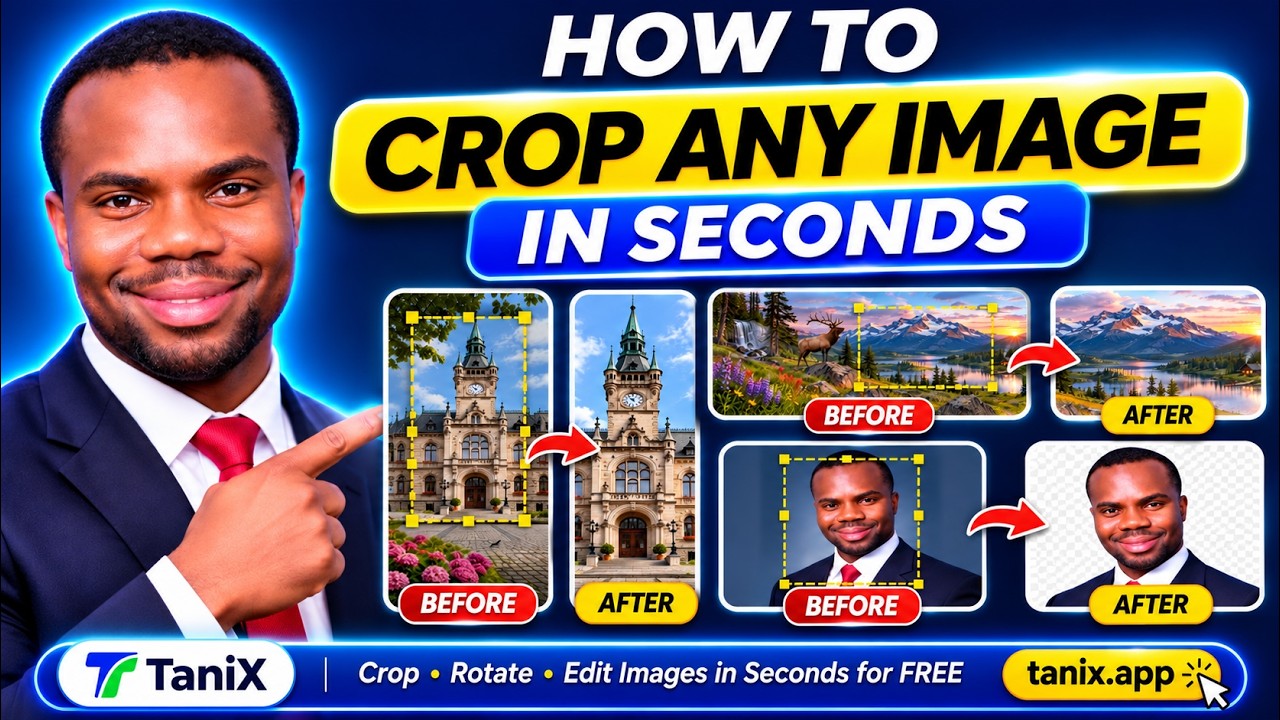
How to Crop and Rotate Any Image in Seconds for FREE
The class showed how to use TaniX’s Crop and Rotate tool to select part of an image, crop it, and download the result.